Investigate risk
Identity Protection provides organizations with three reports they can use to investigate identity risks in their environment: risky users, risky sign-ins, and risk detections. Investigating events is key to better understanding and identifying any weak points in your security strategy.
All three reports allow for downloading of events in .CSV format for further analysis outside of the Azure portal. The risky users and risky sign-ins reports allow for downloading the most recent 2,500 entries, while the risk detections report allows for downloading the most recent 5,000 records.
Organizations can take advantage of the Microsoft Graph API integrations to aggregate data with other sources they have access to as an organization.
You can find the three reports in the Microsoft Entra admin center, then Identity, and then Protection – Identity Protection.
Navigating the reports
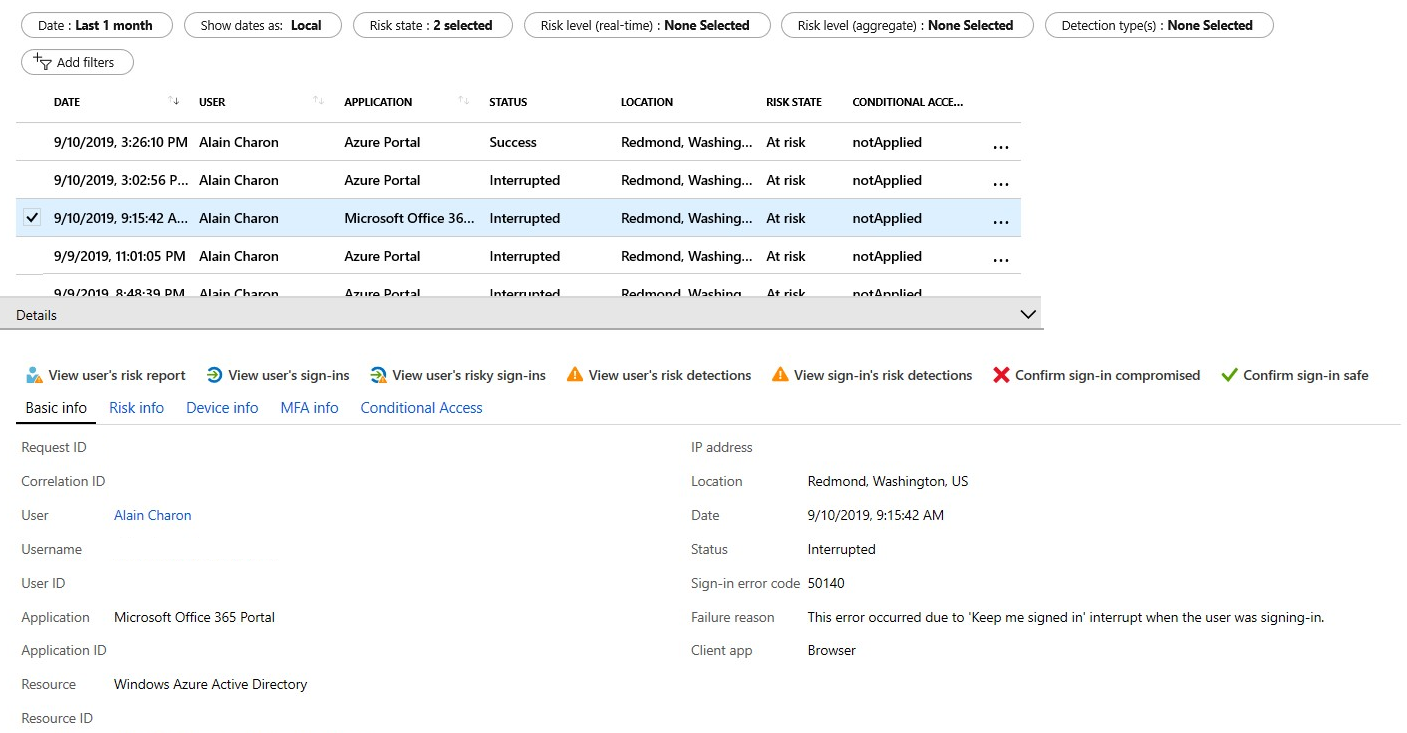
Each report launches with a list of all detections for the period shown at the top of the report. Each report allows for the addition or removal of columns based on administrator preference. Administrators can choose to download the data in .CSV or .JSON format. Reports can be filtered using the filters across the top of the report.
Selecting individual entries enables additional entries at the top of the report, such as the ability to confirm a sign-in as compromised or safe, confirm a user as compromised, or dismiss user risk.
Selecting individual entries expands a details window below the detections. The details view allows administrators to investigate and perform actions on each detection.
Risky users
With the information provided by the risky users report, administrators can find:
- Which users are at risk, have had risk remediated, or have had risk dismissed?
- Details about detections.
- History of all risky sign-ins.
- Risk history.
Administrators can then choose to take action on these events. They can choose to:
- Reset the user password.
- Confirm user compromise.
- Dismiss user risk.
- Block user from signing in.
- Investigate further using Azure ATP.
Risky sign-ins
The risky sign-ins report contains filterable data for up to the past 30 days (one month).
With the information provided by the risky sign-ins report, administrators can find:
- Which sign-ins are classified as at risk, confirmed compromised, confirmed safe, dismissed, or remediated.
- Real-time and aggregate risk levels associated with sign-in attempts.
- Detection types triggered.
- Conditional Access policies applied.
- MFA details.
- Device information.
- Application information.
- Location information.
Administrators can then choose to take action on these events. Administrators can choose to:
- Confirm sign-in compromise.
- Confirm sign-in safe.
Risk detections
The risk detections report contains filterable data for up to the past 90 days (three months).
With the information provided by the risk detections report, administrators can find:
- Information about each risk detection including type.
- Other risks triggered at the same time.
- Sign-in attempt location.
Administrators can then choose to return to the user’s risk or sign-ins report to take actions based on information gathered.
The risk detection report also provides a clickable link to the detection in the Microsoft Defender for Cloud Apps (MDCA) portal where you can view additional logs and alerts.
Leave a Reply